
Turn your ad-filled Android TV into a clean Apple TV-style screen for free
Use a free open-source GitHub project and guided AI prompts to disable TV ads and bloatware over Wi-Fi—no root required and 100% reversible.

Build with AI · GitHub ✓ Supervised repo · MIT
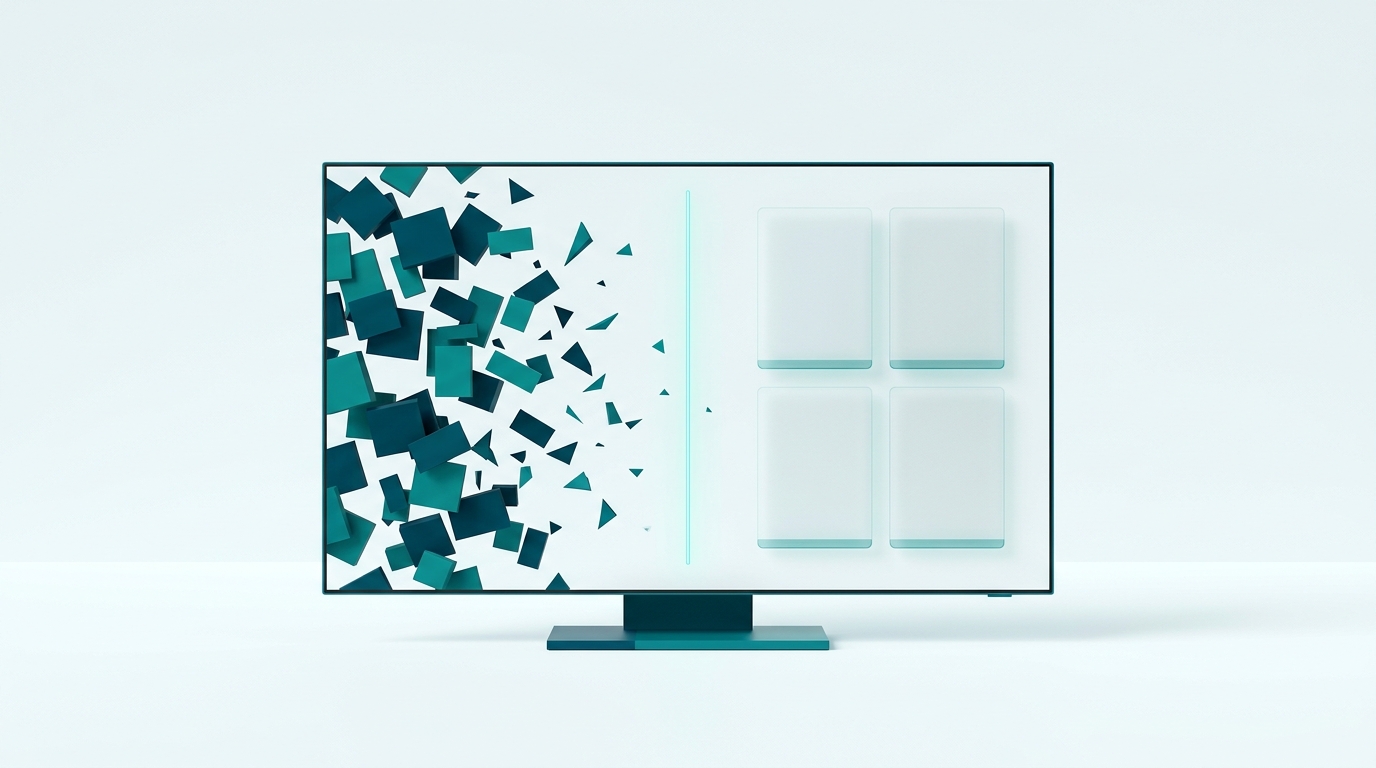
BEFORE
A sluggish Android TV or Google TV home screen crowded with sponsored banners, auto-playing promos, and pre-installed apps you never use.
→
AFTER
A fast, ad-free, Apple TV-inspired minimalist home screen with only your apps—configured over Wi-Fi for $0, no root, and 100% reversible.
How it works under the hood (in simple words)
We will use Gathin23/cleanyourtv (~60,700+ GitHub stars, MIT License), an open-source toolkit that connects from your computer to your Android TV or Google TV (Xiaomi, TCL, Hisense, Sony, Nvidia Shield, and more) over your home Wi-Fi using ADB. It turns off sponsored banners and pre-installed clutter while installing a minimalist Apple TV-style home screen.
Think of it like tucking clutter into a locked closet instead of throwing anything away: before changing a single app, it saves an automatic backup (tools/backup.sh) and only suspends unwanted packages (pm disable-user) without rooting your TV—so you can restore the original screen in seconds with tools/restore.sh. Note: ADB cleanup does not apply to Samsung Tizen, LG webOS, or Roku (for those sets, the project provides a manual remote guide at cleanyour.tv/not-android).
Before you start
- An Android TV or Google TV device (Xiaomi, TCL, Hisense, Sony, OnePlus, Nvidia Shield, etc.)—not Samsung Tizen, LG webOS, or Roku.
- A Windows, macOS, or Linux computer connected to the same Wi-Fi network as your TV.
- A free AI assistant (Gemini, ChatGPT, or Claude) or an AI coding assistant with terminal access (like Claude Code or Cursor) to run the guided steps.
Step 1: Unlock Developer Options on your TV and connect over Wi-Fi
Copy this prompt into your AI chat so it walks you through enabling network debugging on your specific TV model and connecting safely from your computer.
I want to use the official open-source GitHub project "Gathin23/cleanyourtv" to remove ads from my TV and switch to a clean Apple TV-style home screen.

My TV brand and model is: [WRITE YOUR TV BRAND/MODEL, e.g., TCL Google TV / Xiaomi TV Box]
My computer is: [Windows 11 / macOS / Linux]

I do not know how to code. Guide me step by step with plain-language instructions to:
1) Unlock Developer Options (pressing OK on "Build" 7 times) and enable USB/Network debugging on my TV.
2) Find my TV's local IP address and verify the Wi-Fi ADB connection on port 5555.
Wait for my confirmation after each step before moving to the next one.
Step 2: Back up your TV, remove ads, and install the clean launcher
Once your computer can see the TV over Wi-Fi, paste this prompt so your AI follows the official CleanYourTV safety flow without erasing anything permanently.
Now that my computer and Android TV / Google TV are connected over Wi-Fi, follow the official "Gathin23/cleanyourtv" repository workflow:

1) Clone https://github.com/Gathin23/cleanyourtv and reuse its official tools/ and launcher/ folders.
2) Run an automatic backup first (tools/backup.sh) before disabling anything.
3) Scan my TV's installed packages, explain in plain language which ad/bloatware packages are safe to disable with pm disable-user, and ask for my approval before disabling anything.
4) Configure and install the clean Apple TV-style home screen, pulling screenshots from the TV so we can verify every change together.
Step 3: How to undo everything and restore your original TV anytime
Keep this prompt saved for peace of mind: if you ever sell the TV or miss the stock interface, your AI can reverse every change using your local backup.
I want to undo the CleanYourTV changes on my Android TV / Google TV and return to my original home screen and apps.

Guide me to run tools/restore.sh from the Gathin23/cleanyourtv folder using the backup stored in ~/.cleanyourtv/, re-enable any disabled packages, and restore the original launcher as default. Wait for me to confirm on screen that everything is back to normal.
Did an error or connection issue pop up?
Wi-Fi permissions and TV menus vary slightly by brand. Copy the error text or take a photo of your screen and send it to your AI with this rescue prompt:
I am following the Gathin23/cleanyourtv guide on my [TV BRAND/MODEL] from [Windows / macOS] and hit this exact error: [PASTE ERROR OR DESCRIBE SCREEN]. Explain in one simple sentence what happened and give me the exact next click or command to fix it safely.